“Feature” tag

 As part of the 1.5.0 release, MapTool included a popup window to allow for multiple-line editing of properties. Prior to this release, you would need to copy a long properties entry to another editor, make your changes, then copy it back. With 1.5, you can simply click into the properties field, then on the down arrow next to the property value to bring up an editing window.
 The spacebar in MapTool has several features that GMs find useful during games.
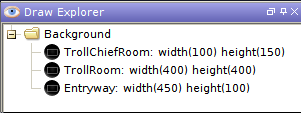 With the release of Maptool 1.5 comes a much-requested feature to the Draw Explorer. You can name drawings or groups of drawings via the Draw Explorer interface. This might not sound like much, but it greatly helps you navigate your way those around large, complex maps.
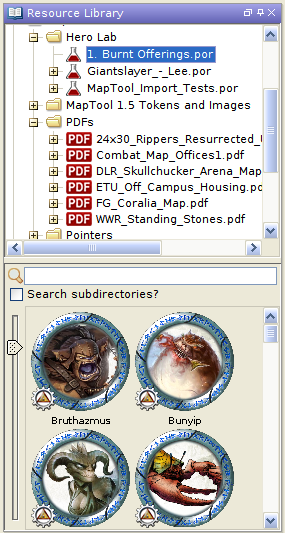 MapTool 1.5 and greater now support PDFs and Hero Lab POR files as part of the Resource Library. You can either place the files in an existing file folder in the LIbrary or add a new folder via the File->Add Resource Library menu.
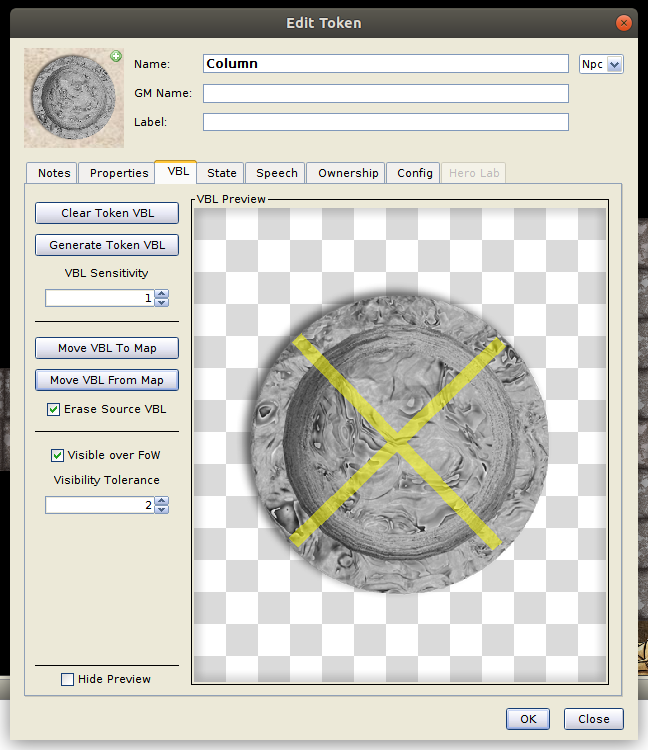 MapTool 1.5 allows the transfer Vision Blocking Layer (VBL) to and from tokens. To access this new capability, simply edit a token and go to the VBL tab.
 New in version 1.5: Pathfinding.
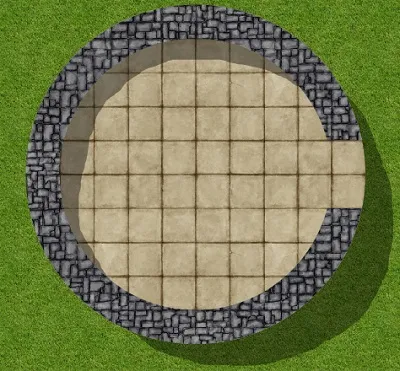
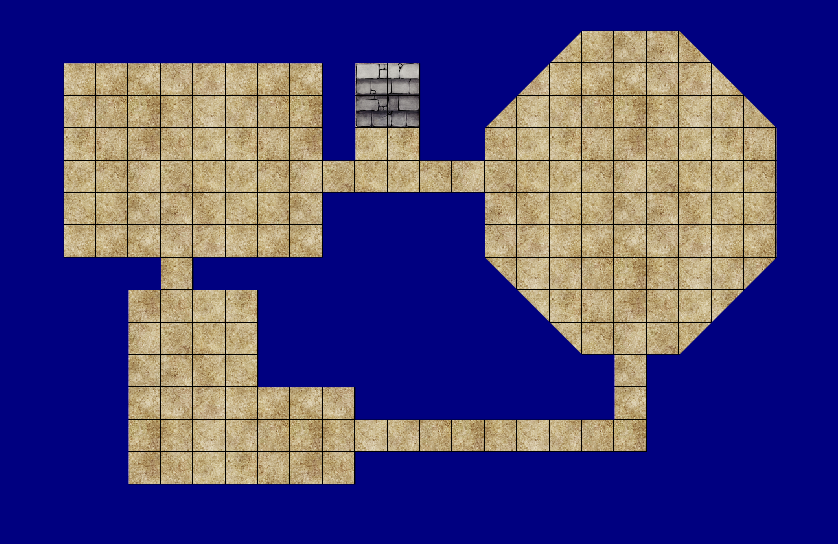 With the introduction of Maptool 1.5 comes a series of additions to the Draw Explorer that should speed map creation. If you draw your dungeon rooms directly in Maptool, you can now build the Vision Blocker Layer in a few simple clicks. Imagine you had built the dungeon shown below entirely with textures (not images):
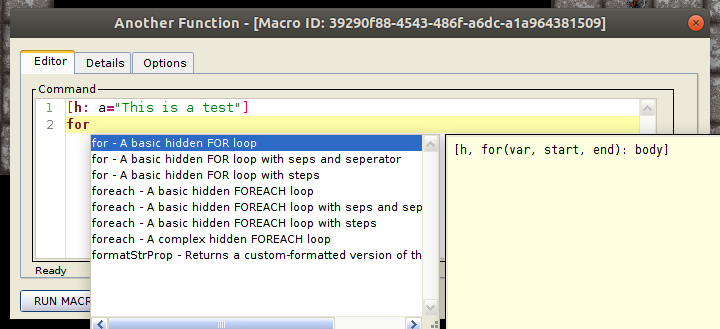 With the release of MapTool 1.5 comes a new macro editor with syntax highlighting and code completion. You no longer need to close the editor to run a macro or save changes. The new editor features:
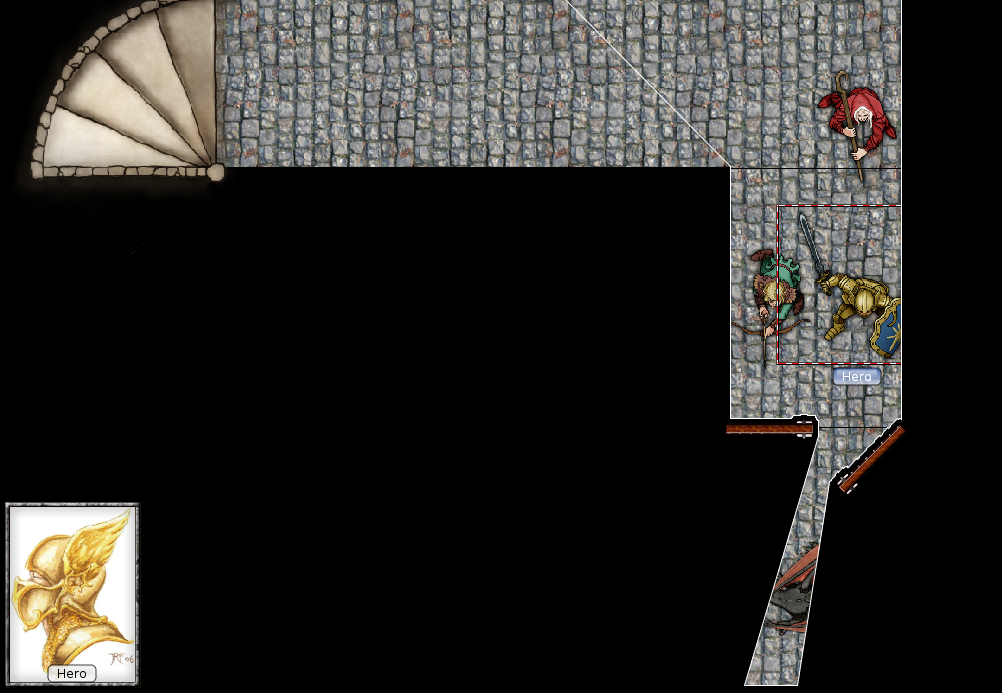 Long time users of MapTool know the problem with doors, columns, statues, and Vision Blocking Layer (VBL). You want MapTool to block vision through these objects but you want the players to see them without their vision being blocked by VBL. Thanks to the RPTools craftsmen, you can now have your object and VBL too.
 With the upcoming release of MapTool 1.4.2, GMs will be able to add a layer of Vision Blocking to stamps and tokens. This means Players will be able to see an object but that object will block all light and sight from passing through it. This comes in handy for doors, statues, vehicles, and large tokens. When combined with MapTools Macro Bag of Tricks drop-in resource, you can create the following effect on doors.
-
With the release of Maptool 1.4.2 you will have the ability to get a drawing’s properties and apply those to another drawing. You can try this functionality in the Dev/Test Build of MapTool now but we don’t recommend using Dev/Test for your gaming sessions unless you’re the adventurous sort.
-
With the release of Maptool 1.4.2, you will have the ability to merge different drawn elements of your map together. You can try this functionality in the Dev/Test Build of MapTool now but we don’t recommend using Dev/Test for your gaming sessions unless you’re the adventurous sort. If you’re unfamiliar with the Draw Explorer, we detailed its initial functionality in a previous post.
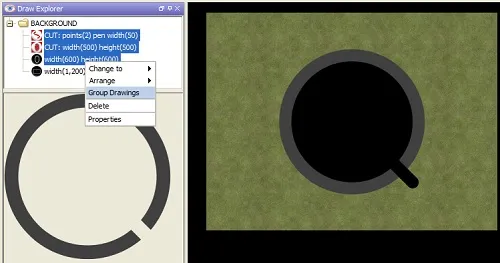
 The new feature provided by the Draw Explorer is the ability to group elements of your drawing together. Grouping draws these elements as one effective object. How this differs from elements drawn normally becomes apparent when you include cuts or erasings in your group.
 MapTool added the Draw Explorer as a new feature in release 1.4.0.1. This innovation gives GMs access to a tree view of drawings and templates on the current map. From this view, users see a list of elements created with the Drawing and Template Tools. Note: for the purposes of this article, both templates and drawings will simply be called drawings.